Chapter 14· Groove OS 1.4
PROJECT
Play along as you read: Play it live opens a working FM-1, running its real software, on the screen this part of the page is about. Tap a control's name in the text to find it on the panel.
PROJECT is where your songs live: three slots on the FM-1, an automatic save that brings the session back after a power cut, a clean page to begin from, and a web page that copies projects to your computer and back. Songs to start from come with every sound pack. Everything in a song is saved: tracks, sounds, kits, recordings, patterns, scenes, mix and effects.
The slots
SELECT turns to PROJECT, the last view. Each slot shows its name, the number of tracks, the tempo and the size, with a small thumbnail of its lanes. A square after PROJECT in the header (and on every other screen) means the session has changes you have not saved. An empty slot says SAVE HERE TO KEEP IT.
moves between the slots and NEW.
| Control | What it does |
|---|---|
| on a slot | The slot menu (below). |
| Saves the session; on this view, into the slot under the cursor. See below. | |
| Hold (SHIFT is held down) on a slot | Deletes the project in it (a ring names it, then it asks). |
on NEW | EMPTY, a clean page (below). |
Try it·On the FM-1
FIRST GROOVE's slot is under the cursor. Press SEL for what you can do with it.
SELThe slot menu
| Row | What it does |
|---|---|
LOAD ↵ | Loads the project. If the session has unsaved changes, or the music is playing, it asks first. On the slot you are working in the question says REVERT: it throws your changes away and loads the saved copy. |
SAVE HERE ↵ | Saves the session into this slot (asks before replacing another project). |
RENAME ▸ | Names the project (up to 12 characters; every key types its letter). The first key you type starts a new name; turn or first to edit the old one in place. |
DUPLICATE ▸ | Copies the loaded project into a slot you pick. |
DELETE ↵ | Deletes the project (asks). |
RENAME and DUPLICATE work on the project that is loaded: on a slot that holds another project they are dimmed and say so (LOAD IT TO RENAME IT).
Naming a new song. A song you have not saved yet can have its name before its first save. On PROJECT, an empty slot's hint reads SEL: NAME IT, SAVE IT: opens the slot menu, RENAME names the session, and SAVE HERE saves it into that slot under that name.
Saving
Press . Where it saves:
- On PROJECT itself, with the cursor on a slot, saves into that slot.
- On any other screen, a session you loaded from a slot goes back to that slot.
- A new session goes into the first empty slot.
- With all three slots full, PROJECT opens on slot 1 and says
ALL SLOTS FULL: PICK ONE; choose a slot and save there.
Saving over a different project asks first, and so does saving while the music plays: a save stops the music while the FM-1 writes its flash, with a progress bar and the words KEEP THE POWER ON. Save between takes, not during one.
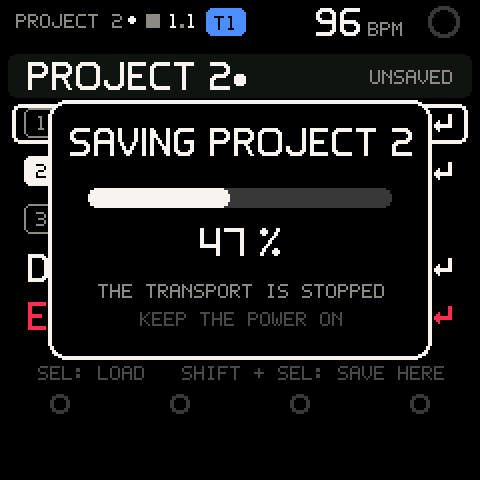
A new save is written in full before the old copy is let go, so a save that cannot complete keeps the old one (SAVE FAILED: OLD SAVE KEPT). A project has a size limit, and a typical one is far below it. One that is too big says PROJECT TOO BIG: 17 KB, with its size.
A clean page
NEW offers EMPTY, a clean page with sounds ready: four tracks (a VA drum kit, a VA bass, FM keys and an FM lead) with their mix and effects, no notes, 120 BPM, no swing, two bars, the click on, in A minor with IN KEY on. It is also what a factory-fresh FM-1 starts on. on it starts it, or asks first if the session has unsaved changes or the music is playing (EMPTY? UNSAVED CHANGES ARE LOST). Starting EMPTY never changes your STARTUP setting.
Under EMPTY, MORE says where songs to start from are: GROOVE-OS.COM/SOUNDS, where they come with every sound pack (see Songs inside the sound packs). The website's Projects page backs up your slots and puts them back (see Back up, share and restore on the web).
Note: up to Groove OS 1.1,
NEWalso listed four ready-made songs: FIRST GROOVE, PUNCH, DUSTY and STEEL. From 1.2, songs to start from come with every sound pack instead, which leaves room in the firmware for new features. EMPTY stays on the FM-1.
Autosave and resume
You rarely lose work. While the music is stopped and you have left the controls alone for a few seconds, the session is saved automatically every two minutes (when it has changed), and when you leave PROJECT, into a scratch slot of its own. At power-on, or after a power cut or a crash, the FM-1 resumes it: the loop you left is back, with its sounds. The autosave is not one of your three slots and never replaces them.
SETTINGS > STARTUP chooses what happens at power-on: RESUME (the default) or NEW (start from a blank session: four empty tracks, 120 BPM, in C major with IN KEY off, keeping only your favourite and recent sounds). The power-on message says RESUMED and the project's name when a session came back; RESUME SKIPPED: IT CRASHED means the last attempt to bring it back crashed, so it was left alone.
What a project keeps
Everything: tracks and their sounds (FM and VA), kits, recordings and their knob moves, the working pattern and the 16 stored patterns, chains, parameter locks, scenes (with the stored pattern each track played when you captured them), the mix, the effects chain, tempo and swing, the key and scale, IN KEY and the chord settings, track names and octaves, and your favourite and recently used sounds.
Scenes from a song saved before 1.4.1 hold their mutes and no patterns: they keep switching the mutes until you capture them again (see Black keys: scenes).
Back up, share and restore on the web
The website has a Projects page that copies projects between the FM-1 and your computer over USB. Nothing is uploaded to a server: the files go straight between the two.
- Open the Projects page in Chrome or Edge and sign in (an account is all it needs).
- Connect the FM-1 with its USB cable and press connect FM-1. The page shows the three slots and the autosave, with their names and sizes.
- download saves any of them to your computer as a
.groovefile, named after the project. - upload puts a
.groovefile into a slot. The page names the project it will replace and asks to confirm. The FM-1 checks the whole file before it replaces anything; if anything fails, the slot keeps what it had. The FM-1 saysIMPORTEDand the project's name when it is done.
Two more buttons sit under the list. back up the session saves the session into the autosave as it is now, then downloads it, so unsaved work is backed up too. export all downloads every project and the autosave as separate files. refresh the list asks the FM-1 again. The FM-1 must be stopped and not busy saving: otherwise the page says the FM-1 is playing or the FM-1 is busy, and nothing is changed.
A .groove file is one project, small enough to email, exactly what the FM-1 stores, nothing converted: it is also the way to share a song. A project goes onto an FM-1 that stores projects in the same format it was saved in, and the page tells you when it does not.
Careful: project export and import need the Groove OS build the install page offers now, and the FM-1 should not be busy saving. Updating Groove OS can change where projects are stored: the install page then warns you and offers export all first, which saves every slot to your downloads before it writes anything.
Songs to and from your music program
The Projects page turns a project into a MIDI file, and a MIDI file into a project, so a song can begin or end in the music program you already use: any program that opens .mid files. Both happen in your browser. Nothing is uploaded.
Finish a song in your music program
- Open the Projects page. Choose a
.groovefile you downloaded, or connect the FM-1 and press MIDI beside a slot. - Tick the tracks you want and choose how long the file runs: one loop, 8, 16, 32 or 64 bars, or the whole pattern chain. A song with scenes can also run its scenes in order.
- Press download MIDI file.
The file has a MIDI track for every Groove OS track, named after it, on the channel the track listens on (TRACK menu > MIDI CH), with the tempo, every note's velocity and length, and the track's level as its volume. Kit hits sit on the pad notes, pad 1 on note 36 as in a drum rack; the page can write General MIDI drums on channel 10 instead. What the step sequencer plays and the notes you recorded both come out as notes, and so does a pattern chain. A track's transpose, the key shift, velocity scaling, nudge, swing on kit hits, ratchets and chance are already in the notes. Humanize, knob moves, effects and the sounds themselves stay behind: your music program has its own.
Start a song on your computer
- Write the song in your music program, or have an assistant write the notes, and export it as a standard MIDI file (type 0 or type 1).
- On the Projects page, choose the file. The page lists the parts it finds (a part is one channel of one MIDI track) and what each will be: drums, bass, keys, pad or lead. Change a part's role or its sound, or leave it out.
- Choose how to make it (the whole song in sections, or one loop), what the notes snap to and the drum kit. The page says in plain words what changed and how many bars made it in.
- Press download project and upload the
.groovefile as above, or, with the FM-1 connected, put it on the FM-1.
| What | How it comes across |
|---|---|
| Parts | Up to 8 tracks. Drum parts (channel 10, or a part that looks like a kit) share one kit track, each hit on the pad whose sound fits. Toms, cymbals and percussion share the ride and perc pads. |
| Length | A loop is 1 to 8 bars. A longer song is cut into sections of up to 8 bars. Each section is a clip on every track, played by a scene (A, B, C and so on) that hands over to the next with THEN, so PLAY plays the song through and starts again. A section that repeats an earlier one note for note is stored once. A project holds 11 scenes, 8 clips on a track and about 760 notes in all: past that the page says how many bars made it in and which bar to start from for the rest. Choose one loop instead and it keeps the stretch you pick. |
| Notes | They snap to 1/16 by default (or 1/8, 1/32, 1/16 with triplets, or not at all). A track holds about 190 notes and all the tracks about 760: the last notes of the busiest track go first, and the page counts them. |
| Tempo | One tempo, 40 to 240 BPM: the tempo at the start of the bars you keep. |
| Sounds | Each part gets a sound from the website's own songs, FM or VA. Pick another on the page, or change it on the FM-1 later. |
| Left behind | Controllers, pitch bend, program changes and effects. |
Songs inside the sound packs
Every sound pack on the Sounds page has two or three songs made only with its own kit and sounds (CORE's are in different styles), to play, take apart or start a song from. They are listed on the sound pack's page (for example /sounds/lo-fi), under Songs inside, each playable in the browser. A song keeps its own copy of every sound, so it plays the same whatever banks A to D hold, with or without its sound pack (see Songs keep their sounds).
Add song to FM-1 connects over USB (Chrome or Edge, signed in with your Groove OS account) and puts the song into an empty project slot. It never writes over a project without asking: if all three slots are full, the page asks which one to replace, and offers to export it first.
When nothing is unsaved and the music is stopped, the FM-1 opens the song right away: press . Otherwise the song is only added, so nothing you are working on is lost: when you are ready, to PROJECT, pick the slot, , LOAD, and .
The sounds are free to use in your own music, commercial releases included; don't resell or share the sound packs or the song files themselves.
SETTINGS > STORAGE
SETTINGS > STORAGE shows the free space and has RESET BANK (puts one of the sound banks A to D back to the FM-1's factory sounds) and ERASE ALL (erases all three project slots, and asks). See Settings.
Troubleshooting
| What happens | Why, and what to do |
|---|---|
| My loops are gone after switching off | Only saved projects and the autosave survive. If STARTUP is NEW, the autosave is not loaded; set it to RESUME. |
ALL SLOTS FULL: PICK ONE | Three slots are used. Choose one to replace, or delete a project. |
| The music stopped when I saved | A save stops the music while the FM-1 writes its flash. |
SAVE FAILED: OLD SAVE KEPT | The write could not finish. The old project is intact. Try again. |
PROJECT TOO BIG: 17 KB | The project is over what a slot holds. Clear a track or a pattern you do not need. |
A MOMENT: AUTOSAVING | The autosave is writing. Wait a second and try again. |
RESUME SKIPPED: IT CRASHED | The last power-on that tried to bring the session back crashed, so the FM-1 left it alone. Your saved projects are safe: load one from PROJECT. |
| RENAME is dimmed | Only the loaded project can be renamed. LOAD it first. |
| The web page will not show my projects | Use Chrome or Edge, close other MIDI programs, and make sure the build the install page offers is installed. |
| The upload page says the format is different | The project was saved by a build with a different storage format. Load it on the same build, or export from a matching one. |