Chapter 2
TAPE
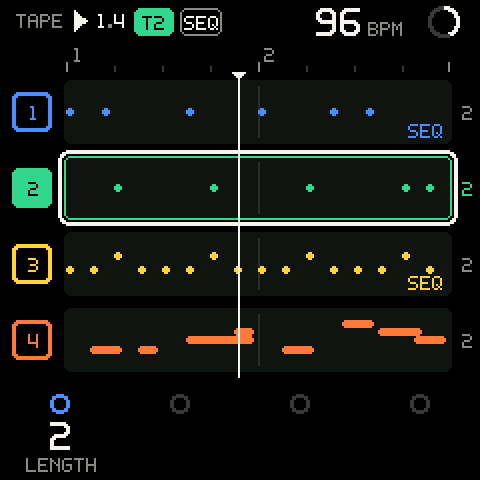
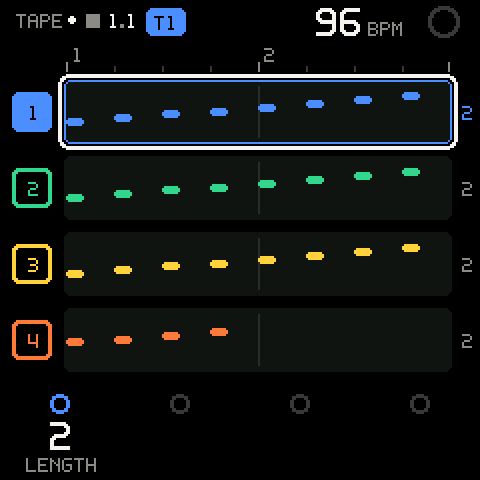
TAPE is the home page: your tracks (1 to 8) of recorded notes and knob moves, each looping over its own length under its own playhead. You record here, set each track's length, add and remove tracks, and reach the tape's settings and actions. Levels, mutes and solos are on MIX. HOME always leads back to TAPE.
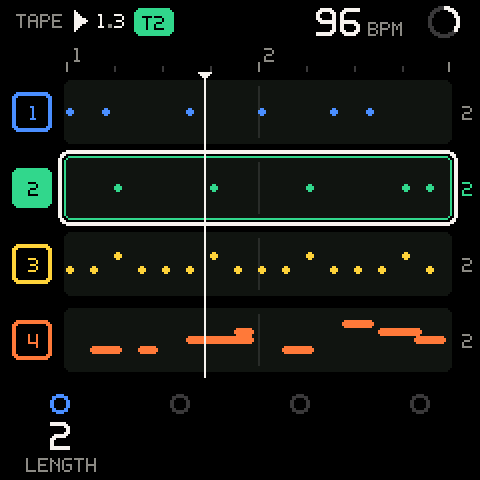
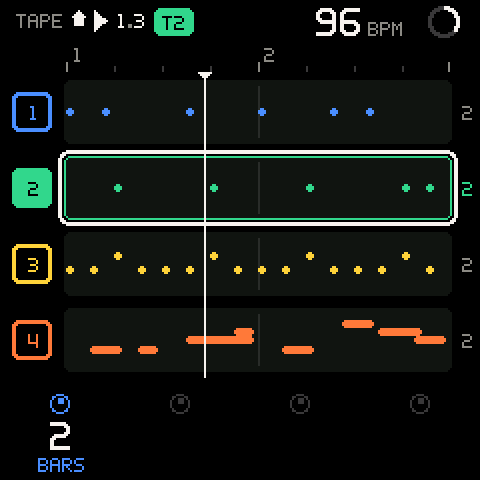
The page at a glance
| Part | What it shows |
|---|---|
| Ruler (top) | The selected track's bars (numbered) and beats, with a small triangle for its playhead. Over 4 bars, every other bar is numbered. |
| Track chip (left) | 1-8 in the track's colour. Filled: the selected track. M: muted. S: soloed. A white outline that blinks: a mute or solo waiting to land (see MIX). |
| Lane | The track's notes over one pass of its loop: pitch runs bottom to top, time left to right. Thin vertical lines mark its bars. A thin line across it: its automation (see Automation). |
| Scroll bar (far left) | With more than four tracks: which four of them the page shows. |
| Playhead | A white line per lane. Tracks of the same length share one line. |
| Length digit (right) | The track's length in bars. While a new length waits for the bar line, it alternates with the new one (white). |
REC (lane, top right) | This lane is recording. The lane's border turns red. |
SEQ (lane, bottom right) | This track's step pattern plays. Blinking: it is queued to start or stop. See SEQ. |
| Legend (bottom) | What K1-K4 set. It changes with the cursor. |
Notes you have just recorded show white until the playhead comes round again. A muted track, or one at level 0, draws its notes as grey outlines. While any track is soloed, the others are dimmed.
The cursor
Turn ALGORITHM to move the cursor (the white outline). It has one position for the ruler and one per track.
| Position | Outline round | K1-K4 | SEL |
|---|---|---|---|
| 0 | The ruler | The tape's settings: TEMPO, SWING, CLICK, QUANT | Opens TAPE > ACTIONS |
| 1-8 | That track's lane | The track's LENGTH (the other three are not built yet) | Opens the track's SOUND page, or its KIT page for a kit track |
Moving the cursor onto a lane selects that track. The selected track is the one REC records onto, the keys play, and PRESETS changes. A toast names it and its sound.
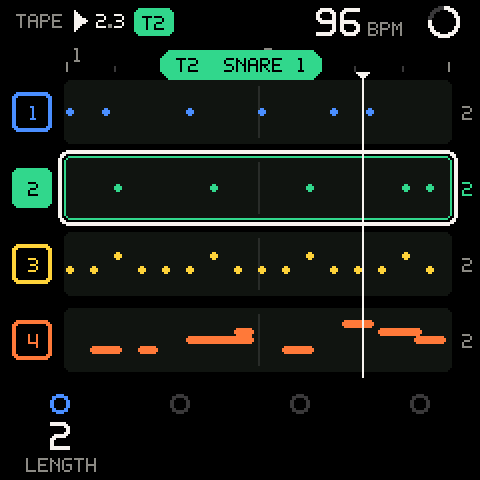
SHIFT + ALGORITHM selects the next or previous track from any page, without moving to TAPE. If the preset browser is open, it keeps the previewed sound first.
More than four tracks
TAPE shows four lanes at a time. With five or more tracks, the lanes scroll as the selection moves, just enough to keep the selected track in view, and a bar at the far left shows which part of the track list you see. MIX's strips scroll the same way.
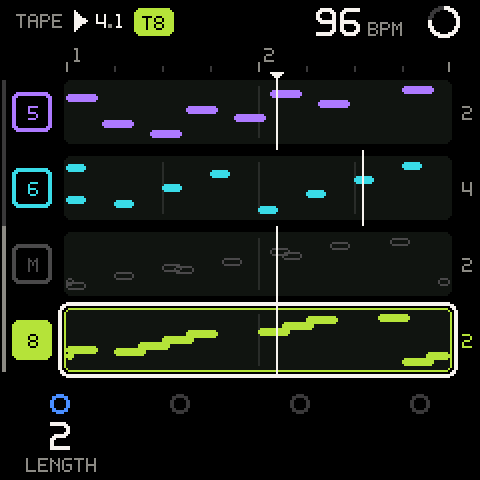
To add, duplicate or delete a track, use Actions. See also Tracks.
Tape settings (position 0)
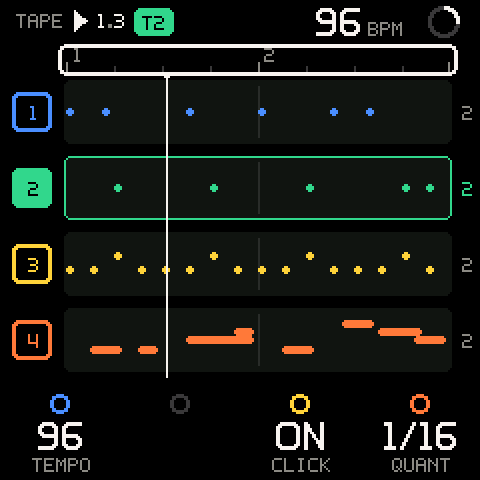
| Row | Values | What it sets |
|---|---|---|
K1 TEMPO | 40-240 BPM, 1 per detent | The tempo of everything: tape, click, arpeggiator, sequencer. |
K2 SWING | - | Not built yet. Turning it shows SWING: COMING SOON. |
K3 CLICK | OFF, ON | ON: a click on every beat, accented on the bar. OFF: only the count-in clicks. Turn right for on, left for off. |
K4 QUANT | OFF, 1/16 | 1/16: notes you play snap to the nearest 1/16 as they are recorded. OFF: notes stay where you played them. Arpeggiator and sequencer notes are never quantized; they are on their grid already. |
SHIFT + K1 COUNT-IN | OFF, ON | ON: REC from stop counts in one bar first. OFF: REC from stop records at once. |
SHIFT + K2 LAUNCH | OFF, BEAT, BAR | When recording, mutes and solos start and stop while the tape plays: at once, on the next beat, or on the next bar line. One step per detent. See Launch quantization. |
The same values appear on SETUP > RECORD (see Settings) and on the SHIFT keys. They are one setting, shown in three places.
SHIFT + SELECT changes the tempo from any page, 1 BPM per detent; a toast shows the new tempo, for example 120 BPM.
Defaults at power-on: 120 BPM, click on, count-in on, quantize 1/16, launch on the bar.
Track settings (a track's lane)
| Row | Values | What it sets |
|---|---|---|
K1 LENGTH | 1, 2, 4, 8 bars | The track's loop length, one power of two per detent. From an odd length it goes to the next power of two up or down (3 goes to 4 or 2). |
K2 TRANSP, K3 NUDGE, K4 SPEED | - | Not built yet: dark rings. Turning one says so (TRANSP: COMING SOON). |
SHIFT + K1 BARS | 1-8 bars | The track's length one bar per detent, for odd lengths (polymeter). Lengths the tracks cannot share are skipped. |
The track's level is on MIX. See Levels.
Track length
Every track is a loop of 1 to 8 bars. Tracks start 2 bars long.
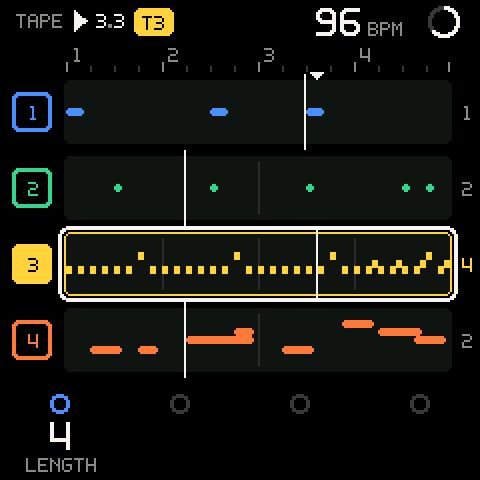
What a length change does to the notes:
| Change | Result |
|---|---|
| Longer, nothing hidden | The loop is repeated to fill the new length: 2 bars at x2 become the same 2 bars twice. |
| Shorter | Notes past the new end are hidden, not deleted. They don't play and don't show. |
| Longer again | Hidden notes come back. |
When it lands:
- On a track with notes, while the tape plays and LAUNCH is
BEATorBAR: on the next bar line. A toast shows it outlined, for exampleT2 4 BARS @ NEXT BAR, and fills when it lands. The length digit and theLENGTHvalue blink until then. - On an empty track, while stopped, or with LAUNCH
OFF: at once. - Asking for the current length again before it lands cancels the change.
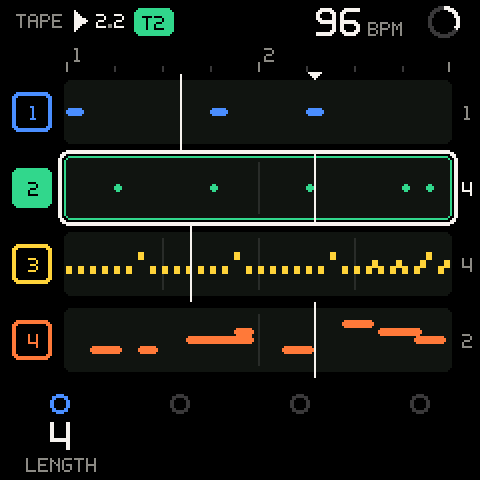
The length you choose last is also the length an empty track takes when you first select it (if the tracks can share it; otherwise the previous track's length, or 1 bar).
Polymeter
Tracks of different lengths run together. Each one restarts on a bar line that is a multiple of its own length, so a 1-bar and a 2-bar loop stay locked, and a 3-bar loop drifts against a 4-bar one until they meet again.
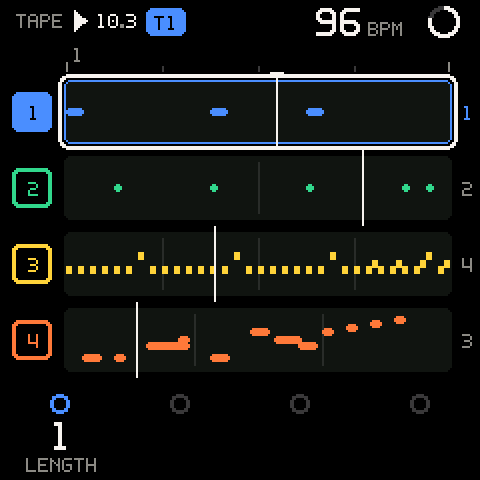
The tape runs through one combined cycle: the shortest number of bars that every length divides (4 bars for 1, 2 and 4; 12 bars for 3 and 4). The header's bar.beat counts through that cycle, so it can read 10.3 with no track longer than 4 bars. A few mixes of odd lengths (for example 5, 7 and 8 bars together) would need more than 168 bars to line up; the OS refuses them with TOO LONG.
Pro tip: Record a 1-bar drum loop, then use SHIFT + K1 to set a bass line on 3 bars. The combined pattern takes 3 bars to repeat while each part stays short.
Recording
REC records onto the selected track. PLAY starts and stops the tape.
| Control | Stopped | Counting in | Playing |
|---|---|---|---|
| PLAY | Starts the tape at bar 1 | Stops (cancels the count-in) | Stops. Recording ends; anything queued is dropped, except a queued length, which lands. |
| REC | Arms and counts in one bar, then plays and records. With count-in off, plays and records at once. | Cancels the count-in | Starts or stops recording (overdub), on the launch grid |
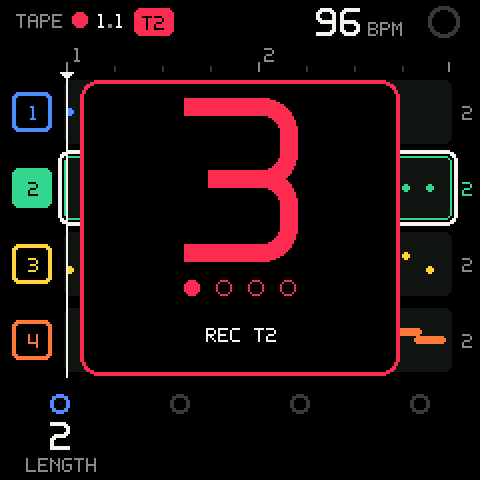
The count-in shows a large numeral per beat (4, 3, 2, 1), dots for the beats gone by, and REC T2. It always clicks, even with CLICK off.
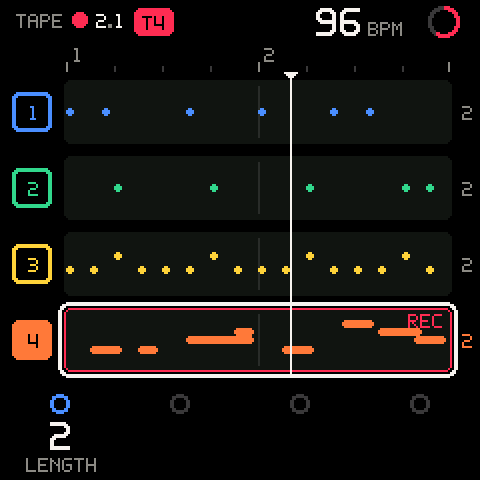
While recording:
- The lane's border is red and shows
REC. The header's transport glyph is a red dot and the track badge turns red. The ring at the top right fills red. - Recording is an overdub: what the track already has keeps playing and your new notes are added. The loop keeps going round; each pass adds to the same take.
- One REC session is one take. UNDO removes it as one piece.
- You can't change track. Trying shows
RECORDING T2 - REC TO STOP. - Notes from the arpeggiator are recorded at their exact grid time. See ARP.
- Knob moves are recorded too: the four SOUND macros and the track level. See Automation.
The REC light: lit while recording, blinking while a recording waits to start, flashing each beat during the count-in.
To record a first loop:
- Turn ALGORITHM to the track you want.
- Choose a sound with PRESETS (see SOUND).
- Press REC. Wait for the count-in.
- Play. The loop goes round; keep adding notes if you like.
- Press REC to stop recording. The tape keeps playing.
- Press PLAY to stop the tape.
Pro tip: To add to a track, leave the tape playing, select the track and press REC. With LAUNCH on
BAR, recording starts cleanly on the next bar line.
Launch quantization
While the tape plays, LAUNCH decides when REC, mute and solo take effect.
| LAUNCH | REC in and out, mute, solo | Length changes |
|---|---|---|
OFF | At once | At once |
BEAT | On the next beat | On the next bar line |
BAR | On the next bar line | On the next bar line |
Stop, track select, undo, redo, clear and levels are always immediate.
While a recording waits to start, the REC light and the lane's border blink red, and the header's red dot blinks. Press REC again before the line to cancel the wait. A note you play up to 1/32 before the line still belongs to the new take (with QUANT on, it lands on the line).
Changing LAUNCH drops anything that is waiting. Setting it to OFF lands a waiting length at once.
Capture (SAVE)
Play without recording, then press SAVE: the last loop of what you played becomes a new take on the selected track.
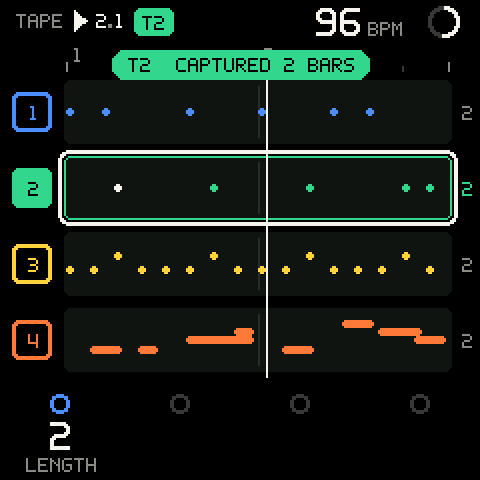
- Select a track and press PLAY. Leave REC off.
- Play along until you've played something you like.
- Press SAVE right after it. The notes of the last loop of the selected track (its length, ending now) land on the track, each where you played it, quantized like a recording. So do the knob moves you made on that track in the same loop (the SOUND macros and its level): they become its automation, exactly as if REC had been on.
The toast says T2 CAPTURED 2 BARS and the SAVE light flashes. The capture is one take, notes and knob moves together: UNDO removes it.
| Toast | Why |
|---|---|
PLAY, THEN CAPTURE | The tape was stopped. Capture only listens while it plays. |
NOTHING TO CAPTURE | No notes and no knob moves in the last loop. |
What capture remembers: the last 64 or so notes you played on the keys, the chord pads or the arpeggiator on the selected track, and its last 64 knob moves. It forgets them when you stop or start the tape, change track or change the tempo.
On the ARP and SEQ pages, SAVE prints the arpeggio or the pattern onto the track instead. See ARP and SEQ.
Pro tip: Capture is the fastest way to keep a happy accident. Loop the tape and just play; when a pass works, press SAVE.
Automation
The tape records knob moves as well as notes. The knobs it records are the performance knobs:
- the four SOUND macros, K1 TONE, K2 ATTACK, K3 DECAY and K4 CHARACTER (while a knob is the macro, not a value you assigned to it; see SOUND);
- the track LEVEL, on MIX (a strip's level, or K1-K4 on the MIX row).
Each track has one lane per knob, in its own loop, like its notes.
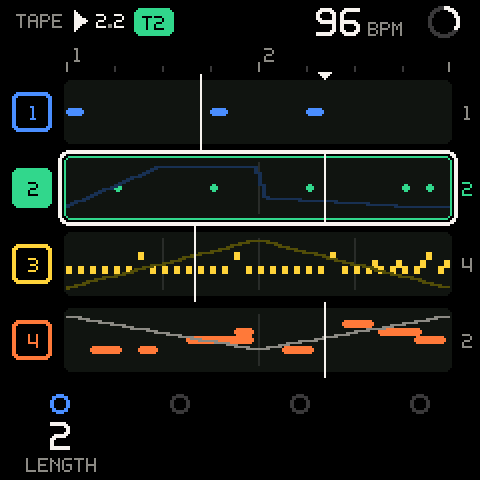
Recording. With REC on, turn a performance knob of the selected track. The move is written where the playhead is, and plays back the next time round.
- Touch mode: while your hand is on the knob (it moved in the last half second), what the lane had there is replaced. When you let go, the lane goes back to what it had, so the rest of the loop stays as it was.
- The move plays back smooth: the knob's steps are joined into ramps.
- The knob moves of a REC pass belong to its take, with its notes. UNDO removes both; undoing a pass also brings back what its knob moves overwrote. REDO brings both back.
- Without REC, SAVE captures the last loop's knob moves with its notes (see Capture).
Playing back. A macro lane shapes each note from its note-on, as the voice starts: a long note keeps the value it started with. A level lane sets each note's level at its note-on, and plays notes even if the knob's own level is 0. The knob's value on screen follows the lane while the tape plays. Turning an automated knob with REC off overrides the lane while you turn it; then the lane takes over again. Your turn does set the knob's own value, which the track goes back to when the lane is cleared.
Seeing it. A lane shows as a thin line across its track's lane on TAPE (the one you touched last, else the first: TONE, ATTACK, DECAY, CHARACTER, then the level), in the knob's colour. A white dot by a knob's legend circle means it is automated; it turns red while that knob is being recorded. On MIX, a dot by the fader marks an automated level.
Clearing a lane. Hold SEL and turn the knob: its lane is cleared (T2 TONE CLEARED). The held legend says CLEAR over every automatable knob (the SOUND macros, the track levels), with a lane or not. It is one undoable step: UNDO brings the lane back. A knob without a lane says NO AUTOMATION and doesn't move: hold SEL never means x10 on these knobs. Once a knob has acted, it does nothing more until you let go of SEL. On other numbers hold SEL is x10 (X10); in the deep editor's ASSIGN mode it assigns (ASSIGN). Clearing the track (SHIFT + hold REC) clears its lanes too.
Lengths. As for notes: shortening a track hides the lane beyond the new end, lengthening repeats it.
Tracks. A lane belongs to its track: duplicating a track copies its lanes, adding or deleting tracks moves them along with their tracks.
Room. A track holds 96 breakpoints of automation, shared by its lanes and what undo keeps. When it runs out, the oldest undo history goes first; T2 AUTOMATION FULL means a move could not be written (you still hear it).
Automation is saved with the project.
Undo, redo and clear
All three work on the selected track, from any page, at once.
| Control | What it does |
|---|---|
| SHIFT + REC, released within half a second | UNDO: removes the newest take. Repeat to go further back. After a clear, it brings back everything the clear took. |
| SHIFT + REC, held 1.5 seconds | CLEAR: empties the track. |
| SHIFT + REC, released between the two | Nothing (CANCELLED). |
| SHIFT + PLAY | REDO: brings back the take undone last. After an undone clear, clears again. |
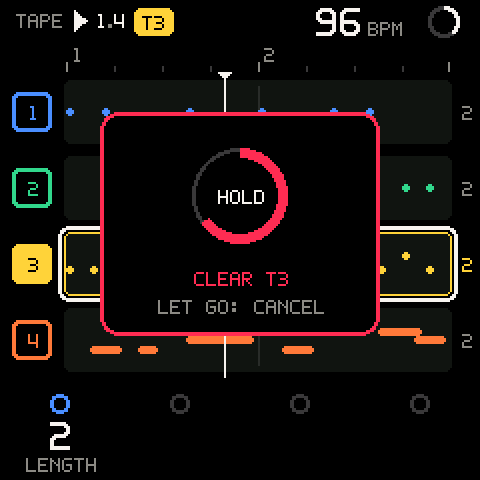
Hold HOME, then press REC. After half a second a card appears with a red ring that fills; at 1.5 seconds the track is cleared (T3 CLEARED, in red). Let go of REC before the ring is full to cancel. The REC light flickers while the ring fills. You may let go of HOME first; the hold goes on.
How far undo reaches:
- UNDO removes takes newest first, as far back as the track goes.
- REDO has one level: only the take undone last comes back.
- Recording a new take on the track drops what undo and redo were keeping for it.
- UNDO while recording ends the take first, then removes it.
Undo and redo toasts: T2 UNDO, T2 UNDO CLEAR, T2 NOTHING TO UNDO, T2 REDO, T2 NOTHING TO REDO. Clearing an empty track says T2 EMPTY.
Actions
With the cursor on the ruler (position 0), SEL opens TAPE > ACTIONS. Turn ALGORITHM to a row, SEL to do it, HOME to go back.
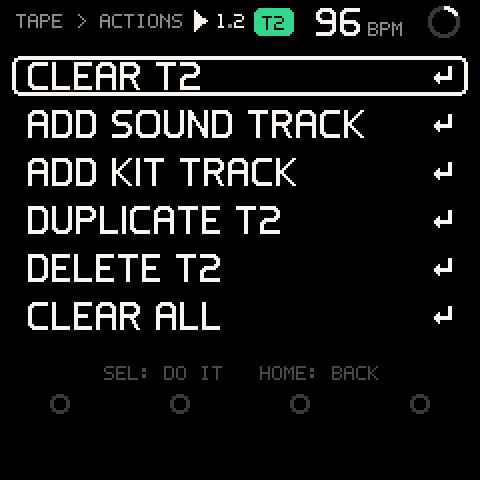
The rows that name a track (CLEAR T2) act on the selected track: choose it first with SHIFT + ALGORITHM, or with the cursor on its lane.
| Row | What it does |
|---|---|
CLEAR T2 | Asks CLEAR T2?, then empties the selected track. SHIFT + REC brings it back. (Held SHIFT + REC clears it too, without the menu.) |
ADD SOUND TRACK | A new last track with a sound of its own, selected, at the length you chose last (see Track length) (T5 NEW TRACK). Up to 8 tracks; then 8 TRACKS: NO MORE. |
ADD KIT TRACK | The same, as a KIT with the default kit (T5 NEW KIT TRACK). |
DUPLICATE T2 | A copy of the track right after it, selected (T3 DUPLICATE): notes, sound, kit, level, automation and step pattern (stopped). The tracks after it move down one. T2 FULL: NO ROOM TO COPY if the notes don't fit in the memory left. |
DELETE T2 | Asks DELETE T2? (NOTES, SOUND, PATTERN GO. NO UNDO), then removes the track (T2 DELETED); the others move up. The last track stays (THE LAST TRACK STAYS). |
CLEAR ALL | Asks CLEAR ALL TRACKS?, then empties every track. Each track's clear can be undone on its own: select the track, SHIFT + REC. Toast: ALL CLEARED, or ALL EMPTY. |
A row that opens another level ends in a chevron (›); a row that does something ends in a return arrow (↵).
While recording or counting in, adding, duplicating and deleting are refused (STOP RECORDING FIRST).
From MIX, SEL on a strip opens the same track's rows (MIX > T2): the track itself (its LENGTH and BARS stay on the knobs), CLEAR T2, DUPLICATE T2, DELETE T2, and TAKES, the take list, not built yet (SOON, last).
Questions
Anything that deletes asks first. The question fills the screen, with CANCEL chosen.
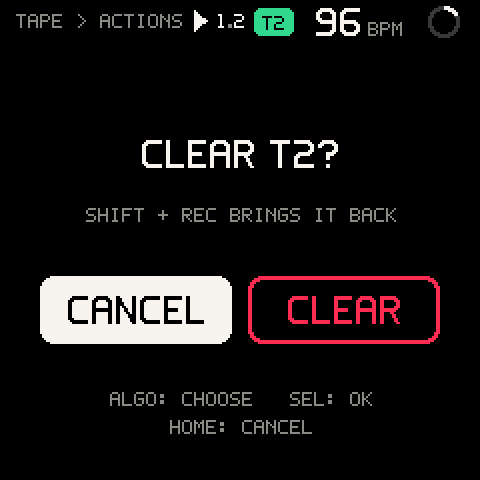
- Turn ALGORITHM to choose
CANCELor the red verb (CLEAR,DELETE). - Press SEL to confirm the choice.
HOME cancels. The SEL light blinks while a question waits. PRESETS does nothing until you answer.
SHIFT
Hold HOME to use SHIFT. A quick tap is BACK; held past 300 ms (the BACK TAP time in Settings) with nothing else pressed, the SHIFT map fills the screen and the keys become commands.
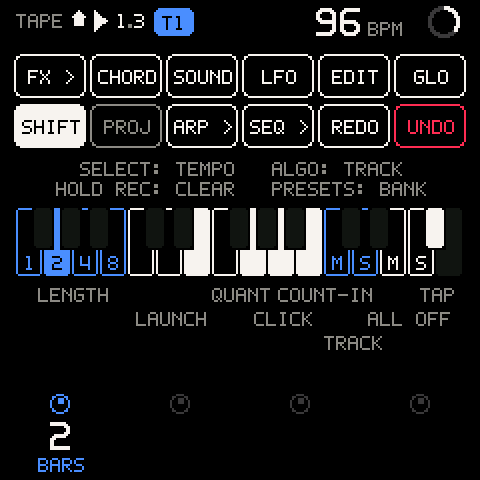
The top of the map shows each button's SHIFT meaning, laid out as on the panel. > means it opens a page.
| Control | With SHIFT |
|---|---|
| SEL | CHORD: global chord input on or off (CHORD ON / CHORD OFF), on every page but KIT and PROJECT. See CHORD. |
| SAVE | PROJ: saves the project into its slot (a new session: the first empty one). While the music plays it asks first, since a save stops it. See PROJECT. |
| ARP, SEQ | ARP >, SEQ >: open the page without turning anything on or off. |
| FX, ENV, LFO, EDIT, GLO | FX >, SOUND, LFO, EDIT, GLO: the same as without SHIFT. |
| PLAY | REDO |
| REC | UNDO on a quick release; hold 1.5 s: clear |
| SELECT | Tempo, 1 BPM per detent |
| ALGORITHM | Select the next or previous track |
| PRESETS | Browse by bank. See SOUND. |
| K1-K4 | The page's second row (see below) |
The keys, counted from the lowest key (F):
| Key | With SHIFT |
|---|---|
| White keys 1-4 (F, G, A, B) | Selected track length: 1, 2, 4, 8 bars |
| White keys 5-7 (C, D, E) | LAUNCH: OFF, BEAT, BAR |
| White keys 8-9 (F, G) | QUANT: OFF, 1/16 |
| White key 10 (A) | CLICK on/off |
| White key 11 (B) | COUNT-IN on/off |
| White keys 12-13 (C, D) | TRACK M / S: mute / solo the selected track on or off, queued to the launch line (T2 MUTE ON @ NEXT BAR). See Queued mute and solo. |
| White keys 14-15 (E, F) | ALL OFF M / S: every muted track unmuted, or every solo off, together on the same line (ALL MUTES OFF @ NEXT BAR). With none on: NO TRACK MUTED / NO TRACK SOLOED. |
| The highest black key (F#) | Tap tempo |
On the map and on the key lights, the current values are lit: the track's length, the launch mode, the quantize mode, click and count-in when on, the selected track's mute and solo, and ALL OFF while any track is muted or soloed. Each command shows a toast with the new value, for example LAUNCH BAR or COUNT-IN OFF.
To tap a tempo: hold HOME, then tap the highest black key in time, three or four times. The first tap shows TAP; from the second on, the tempo follows the average of your last three intervals (TAP 118). Taps more than 2 seconds apart, or closer than 0.15 s, start over.
As soon as you use a SHIFT combination, the map gives way to the page, with the header's SHIFT arrow and the legend's second row: a dot in each knob's ring, labels in the knobs' colours.
| Cursor on | SHIFT + K1 | SHIFT + K2 | SHIFT + K3, K4 |
|---|---|---|---|
| The ruler | COUNT-IN | LAUNCH | - |
| A track | BARS | - | - |
The header
The header is the same on every page; on TAPE it reads, left to right:
| Part | What it shows |
|---|---|
TAPE | The page, or where you are in a level (TAPE > ACTIONS). |
| Unsaved dot | A small white dot: the session has changes no project slot holds yet. Saving or loading a project puts it out. |
| SHIFT arrow | HOME is held and SHIFT is in use. |
| Transport glyph | Grey square: stopped. White triangle: playing. Red dot: recording or counting in; blinking: a recording waits for the launch line. |
| Bar.beat | Where the tape is in its cycle, from 1.1. Stopped: 1.1. |
T1-T8 badge | The selected track, in its colour; red while recording or counting in. |
ARP, SEQ, CHD | Outlined badges while the arpeggiator is on, any step pattern plays or waits to start, or chord input is on (CHORD's own page shows its switch instead). They always show, as does the track badge: a long page name gives way first, keeping its last part (SEQ > PATTERN reads PATTERN). |
| BPM | The tempo. |
| Ring | Fills once per cycle while playing; red while recording. |
Toasts
Short messages appear under the header for about a second. A toast in a track's colour is about that track; a red one deleted something or blocked a change. An outlined toast is waiting for the launch line; it fills, without its @ ... part, when the change lands, and disappears if the change is dropped.
| Toast | When |
|---|---|
T2 SNARE 1 | You selected a track: its number and sound. |
RECORDING T2 - REC TO STOP | You tried to change track while recording or counting in. |
T2 4 BARS, ... @ NEXT BAR | A new length; outlined until it lands. |
T2 FULL | The track has no room for the change: repeating the loop would need more notes than a track holds. |
T2 TOO LONG | The tracks' combined cycle would pass 168 bars. |
T2 CAPTURED 2 BARS | SAVE took a capture. |
T2 UNDO, T2 REDO, T2 CLEARED, CANCELLED | See Undo, redo and clear. |
120 BPM, TAP 118 | A new tempo. |
LAUNCH BAR, QUANT 1/16, CLICK ON, COUNT-IN ON | A SHIFT key changed a setting. |
T2 TONE CLEARED | Hold SEL + that knob cleared its automation lane. UNDO brings it back. |
T5 NEW TRACK, T5 NEW KIT TRACK, T3 DUPLICATE | A track was added or duplicated; the new one is selected. |
T2 DELETED | The track was deleted (red). |
8 TRACKS: NO MORE, THE LAST TRACK STAYS | A session has 1 to 8 tracks. |
STOP RECORDING FIRST | Tracks can't be added, duplicated or deleted while recording or counting in. |
ALL MUTES OFF, NO TRACK MUTED | SHIFT + the top E (or F for solos). |
T2 AUTOMATION FULL | The track's automation has no room left: the knob sounds, the move is not written. |
SWING: COMING SOON | You used a control whose feature isn't built yet. |
Memory
A track holds up to 192 notes, including what undo keeps for it, and all the tracks together share room for 768. A track also holds 96 automation breakpoints. Everything on the tape lives in memory: switching the FM-1 off loses what you haven't saved.
Save it as a project with SHIFT + SAVE. See PROJECT.
Troubleshooting
| What happens | Why, and what to do |
|---|---|
| REC doesn't start recording right away. | LAUNCH is BEAT or BAR: recording waits for the next line (the REC light blinks). Set LAUNCH to OFF for instant punch-in. From stop, the count-in bar comes first; turn COUNT-IN off to skip it. |
| My notes land slightly off where I played them. | QUANT is 1/16: notes snap to the nearest 1/16. Set it to OFF for free timing. |
| I can't change track. | The selected track is recording or counting in. Press REC to stop recording first. |
| A length change doesn't happen. | It waits for the next bar line (the digit blinks). If the tape is stopped or the track is empty it happens at once; TOO LONG or FULL means it was refused. |
| Shortening a track lost my notes. | They are hidden, not gone. Set the length back and they return. |
| A knob won't stay where I turn it while the tape plays. | Its automation lane takes over when you let go. Hold SEL and turn it to clear the lane, or record over it with REC. |
SAVE says NOTHING TO CAPTURE. | Capture only keeps the last loop of the selected track's length. Press SAVE sooner after playing, and check that the tape is playing and REC is off. A tempo change or a track change also empties it. |
| SHIFT + REC cleared the track when I wanted undo. | Holding it 1.5 s clears. Release within half a second for undo. SHIFT + REC again undoes the clear. |
REDO says NOTHING TO REDO after several undos. | Redo keeps only the take undone last. |
| The click doesn't sound while playing. | CLICK is off; only the count-in clicks. Turn it on at the ruler (K3), with the SHIFT key, or in SETUP > RECORD. |
| A queued mute, solo or recording vanished. | Stopping the tape or changing LAUNCH drops anything waiting for the line. |
I can't find a track's LEVEL on TAPE. | Levels, mutes and solos are on MIX, one detent right of TAPE. |
| Some of my tracks aren't on the screen. | TAPE shows four lanes at a time. Turn ALGORITHM: the lanes scroll to follow the selected track (the bar at the far left shows where you are). |
ADD SOUND TRACK says 8 TRACKS: NO MORE. | Eight is the most. Delete a track you don't need first. |
DUPLICATE says FULL: NO ROOM TO COPY. | All tracks share one note memory, and the copy doesn't fit in what is left. Clear or delete a track first. |
| The tape is empty after switching off. | The session lives in memory until you save it: SHIFT + SAVE (see PROJECT). |