Chapter 1
Getting started
FM-1 Groove OS turns the M-VAVE FM-1 into a small groovebox: up to eight looping tracks on a tape, each with its own FM sound or drum kit, plus a scale helper, chord pads, an arpeggiator and a step sequencer. The stock synth engine still makes every sound; Groove OS replaces the screen, the buttons and the way you move around.
What you need to know first
- Groove OS runs on top of the stock V15 firmware. The DX7-style engine, USB and Bluetooth MIDI, the keys and the LEDs are M-VAVE's; the pages, the looper and the tools are ours.
- A session starts with four tracks; you can have 1 to 8. Each track is a loop of 1 to 8 bars with its own sound (a single FM voice) or kit (a set of drum pads). See Tracks.
- Your work lives in memory until you save it. SHIFT + SAVE stores the whole session as a project in one of three flash slots; the PROJECT page loads it back. See PROJECT.
- The FM-1 follows MIDI clock, answers Program Change and takes a panel CC map, with a MIDI channel per track. See MIDI.
Switching on
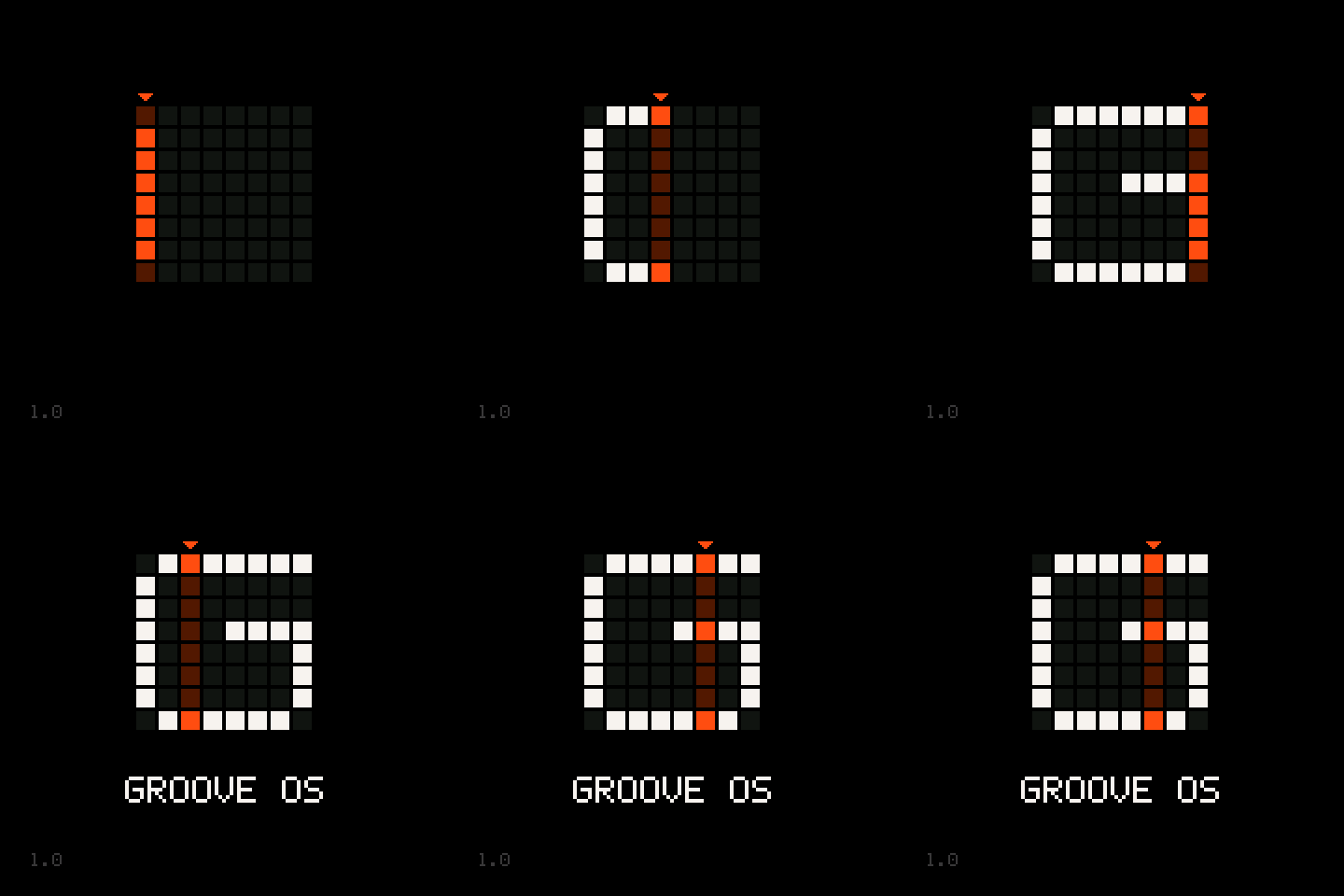
- Switch the FM-1 on. The screen stays black for a moment, then the logo plays: an orange playhead steps across an 8 × 8 grid, one step per sixteenth at 120 BPM, and writes a G. On its second pass GROOVE OS appears under it, and the playhead stops on step 6. It takes one bar.
- About 2.5 seconds after power-on the screen cuts to the TRACKS page.
- The OS starts a new session: 120 BPM, four tracks, track 1 selected, every track empty and 2 bars long. Nothing loads by itself; open PROJECT to load a saved project.
The first seconds belong to the stock firmware on purpose: its USB connection is already up before any Groove code runs, which keeps the firmware installer reachable no matter what (see Installing and recovering firmware).
Safe mode
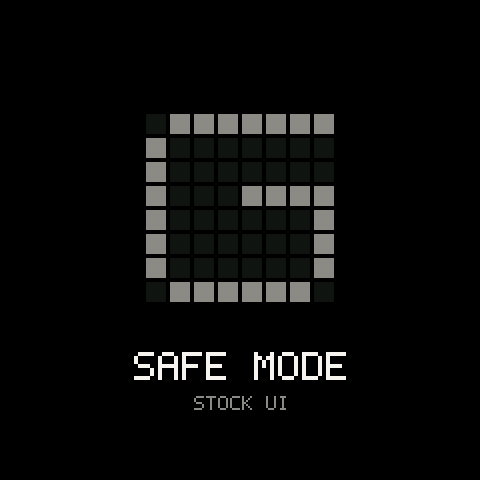
Hold OCT- and OCT+ together while you switch on, and keep holding them until the logo would have ended. The screen shows SAFE MODE under a grey G with no playhead, then the stock UI. Groove OS stays off until the next power cycle and the FM-1 behaves exactly like stock. If the OS cannot get the memory it needs at start-up, it does the same by itself.
The panel
| Control | What it does in Groove OS |
|---|---|
| SELECT (knob) | The page wheel: SCALE, CHORD, TAPE, MIX, PROJECT, in that order, TAPE in the middle. Inside a page's sub-level, turning past the last page leaves the level. |
| PRESETS (knob) | Opens the preset browser for the selected track and scrolls it. |
| ALGORITHM (knob) | The cursor: moves the highlight on the current page (on TAPE and MIX, it selects the track). |
| K1-K4 (knobs) | Edit what the cursor is on. The legend at the bottom of the screen names the four values in the knobs' colours: blue, green, yellow, orange. |
| SEL | Enter: opens the row under the cursor, runs an action row, answers a question. |
| HOME | Tap: back one level; at the top of a page, back to TAPE. Hold: SHIFT (see below). |
| FX | Opens the FX page. Its own knobs are not built yet (dark rings); SEL there opens the stock editor, where the effects are set today (STOCK EDITOR: HOME = BACK). HOME comes back to FX. |
| ENV | Opens SOUND for the selected track, at its Attack/Decay macros. |
| LFO, EDIT | Open the stock LFO page and the stock full sound editor. HOME comes back. |
| GLO | Opens SETUP, the Groove OS settings. |
| ARP, SEQ | Turn the arpeggiator or the selected track's pattern on and open its page; press again from any page to turn it off and go back to TAPE. Other tracks' patterns keep playing. |
| PLAY | Start or stop the tape. |
| REC | Record on the selected track (a one-bar count-in from stop, by default). Press again to stop recording. |
| SAVE | Capture: puts what you just played (without REC) onto the selected track. On SEQ and ARP it prints the pattern or arpeggio instead. SHIFT + SAVE saves the project. |
| OCT-, OCT+ | The stock octave on melodic pages; a one-second message shows the new octave. On KIT they step through the bars. |
Screen buttons (FX, ENV, LFO, EDIT, GLO, ARP, SEQ) act when you release them, so a press can still become part of a combination. PLAY and REC act the moment you press them, so the transport stays tight.
The screen
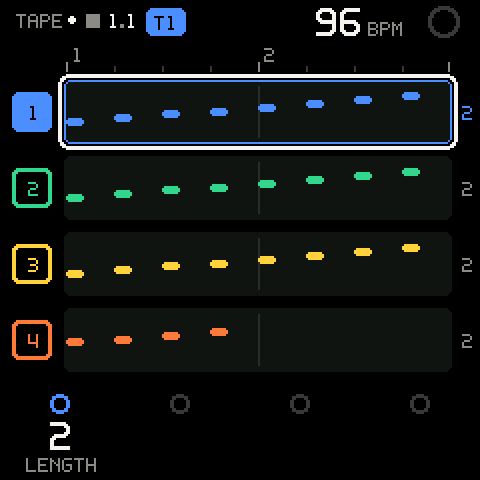
Every Groove OS page shares the same frame.
| Part | What it shows |
|---|---|
| Page name, top left | Where you are, for example TAPE or SEQ > STEP 4. When the header is full it keeps its last part (STEP 4), so the track badge and the ARP / SEQ / CHD badges always show. |
| Unsaved dot | A small white dot after the page name: the session has changes that no project slot holds yet. It goes when you save or load. |
| SHIFT arrow | HOME is held and SHIFT is in use. |
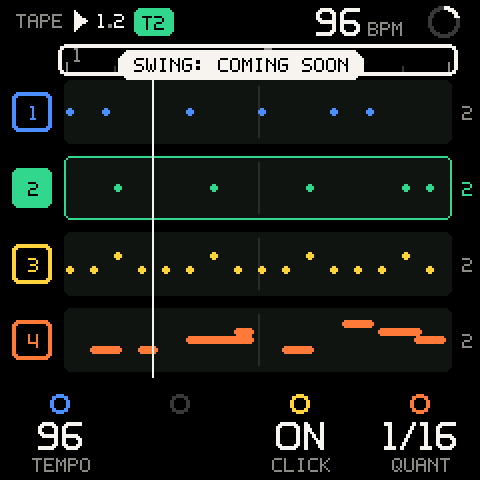
| Transport glyph | Grey square: stopped. White triangle: playing. Red dot: recording, counting in, or a recording waiting to start (blinking). |
| Bar.beat | The playhead's position, 1.1 when stopped. |
| Track badge | T1-T8 in the selected track's colour; red while recording. |
ARP, SEQ, CHD badges | Shown on every page while the arpeggiator, a sequencer pattern or chord input is on. |
| BPM, top right | The tempo (40 to 240 BPM). |
| Ring, top right | Fills once per loop while playing; red while recording. |
| Legend, bottom | What K1-K4 set on this row. Once you turn a knob, its value stays white and the others turn grey. A small dot in a knob's ring means you are seeing its second (SHIFT) row; a dot beside a ring means that value is automated. |
Short messages ("toasts") appear in the middle of the screen for about a second whenever something changes that the page itself doesn't show: a new tempo, a new octave, the track you switched to, a queued launch.
Moving around
Groove OS has three layers.
- The wheel. Turn SELECT to step through SCALE, CHORD, TAPE, MIX and PROJECT. A strip in the header shows the page and its neighbours for a second. The wheel stops at both ends.
- Tool pages. The printed buttons open the tools for the selected track: ENV (SOUND), ARP, SEQ, LFO, EDIT, and GLO (SETUP). Pressing the same button again on its page takes you back to where you came from.
- Levels inside a page. Rows marked with a chevron open with SEL; HOME comes back to the same row. The cursor position is kept per page.
HOME always gets you out: tap it to go up one level, then once more to reach TAPE. If a question or the preset browser is open, HOME closes that first (the browser puts the previous sound back).
Tracks
A session has 1 to 8 tracks. The selected track is the one REC records onto, the keys play, PRESETS changes and the tool pages (SOUND, KIT, ARP, SEQ) edit.
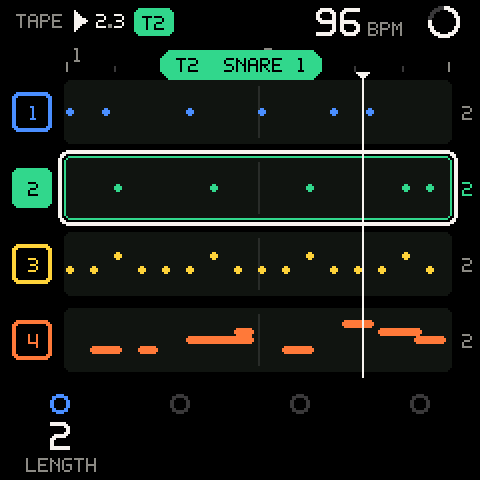
- Select a track: turn ALGORITHM on TAPE or MIX, or hold HOME and turn ALGORITHM on any page. A toast names the track and its sound, for example
T2 SNARE 1. - Add a track:
TAPE > ACTIONS>ADD SOUND TRACKorADD KIT TRACK. The new track goes last, gets a sound of its own and is selected (T5 NEW TRACK,T5 NEW KIT TRACK). With eight tracks:8 TRACKS: NO MORE. - Duplicate a track:
DUPLICATE T2(onTAPE > ACTIONS, orMIX > T2). The copy, with its notes, sound, pattern, level and automation, goes right after it and is selected (T3 DUPLICATE). If the notes don't fit in the memory left:T2 FULL: NO ROOM TO COPY. - Delete a track:
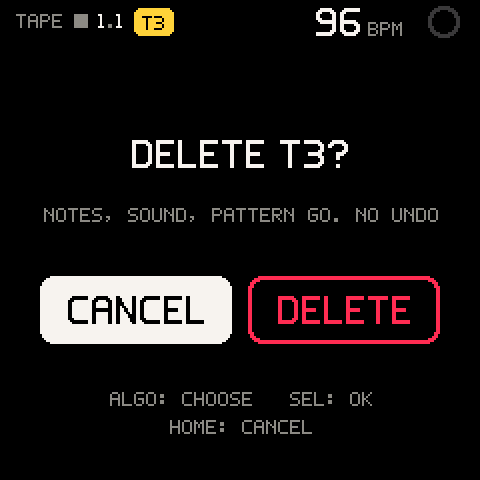
DELETE T2asks first (DELETE T2?,NOTES, SOUND, PATTERN GO. NO UNDO). The tracks after it move up one (T2 DELETED). The last track stays (THE LAST TRACK STAYS).
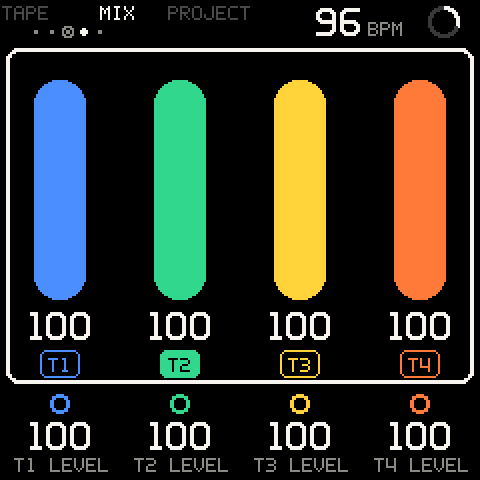
TAPE and MIX show four tracks at a time; with more, the view scrolls to keep the selected track in sight (see TAPE and MIX). You can't add, duplicate or delete a track while recording or counting in (STOP RECORDING FIRST), or change track (RECORDING T2 - REC TO STOP).
SHIFT
Hold HOME and it becomes SHIFT. Once it has been down for the BACK TAP time (300 ms by default) and you haven't used anything else yet, the SHIFT map fills the screen and the keys light up with the current settings. Buttons and knobs combine with HOME as soon as it is down; the keys become SHIFT commands once HOME has been held for the BACK TAP time, so a quick tap of HOME while you play never swallows a note. As soon as you use a combination, the map gives way to the page.
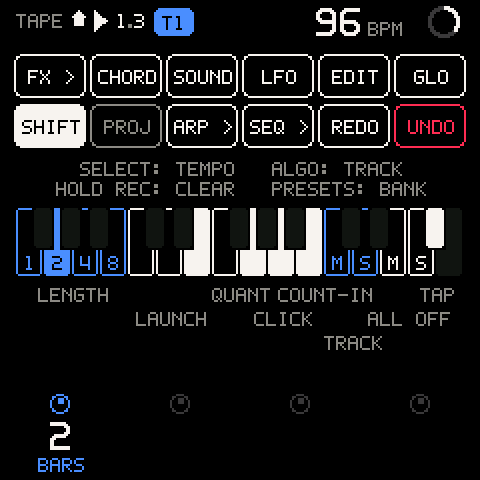
The top of the map shows the panel's buttons with their SHIFT meaning; > means it opens a page.
| SHIFT + | What it does |
|---|---|
| SELECT | Tempo, 1 BPM per detent. |
| ALGORITHM | Selects the previous or next track, from any page (on the KIT step grid it moves the pad row instead). |
| PRESETS | Jumps the browser by bank. |
| K1-K4 | The page's second row of values (the legend shows it). |
| SEL | Chord input on/off (CHORD ON / CHORD OFF), on every page but KIT and PROJECT. On PROJECT it saves into the slot under the cursor. |
| REC | Undo the last take (release within half a second). Keep holding: a red ring fills and the track clears at 1.5 s. |
| PLAY | Redo. |
| SAVE | Saves the project: into the slot it came from, or the first empty slot for a new session. While the music plays it asks first (THE MUSIC STOPS TO SAVE). See PROJECT. |
| ARP, SEQ | Open the page without turning anything on or off. |
| FX, ENV, LFO, EDIT, GLO | Open their page, as without SHIFT. |
| OCT-, OCT+ | On SEQ, over 16 steps: the previous / next 16 steps. |
SHIFT with the keys sets the recording options and mutes. The keys are counted from the lowest key, F.
| SHIFT + key | What it sets |
|---|---|
| F, G, A, B (lowest four white keys) | Length of the selected track: 1, 2, 4 or 8 bars. |
| C, D, E | Launch: off, on the beat, on the bar. |
| F, G (second octave) | Input quantize: off, 1/16. |
| A | Metronome click on/off. |
| B | Count-in on/off. |
C (top octave, M) | Mute the selected track on or off, queued to the launch line: T2 MUTE ON @ NEXT BAR. |
D (top octave, S) | Solo the selected track on or off, queued the same way. |
E (top octave, M) | ALL OFF: every muted track comes back, all on the same line (ALL MUTES OFF). None muted: NO TRACK MUTED. |
F (top octave, S) | ALL OFF: every solo off (ALL SOLOS OFF). None soloed: NO TRACK SOLOED. |
| F# (highest black key) | Tap tempo: three taps or more set the tempo from the last three intervals. |
Each key shows a toast with the new value, for example LAUNCH BAR, QUANT 1/16, CLICK OFF or COUNT-IN ON. The top G has no SHIFT job.
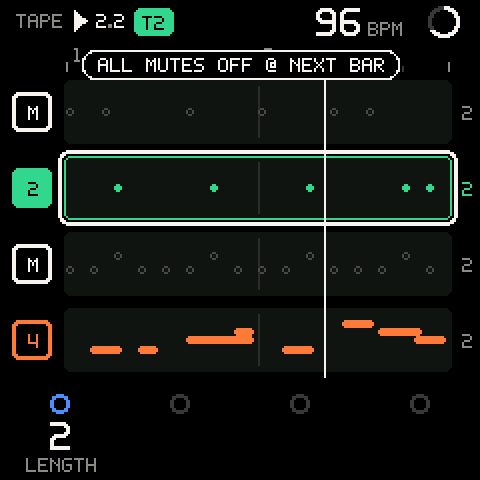
Pro tip: The key LEDs under SHIFT show the current values: the lit length key is the selected track's length, the lit launch key the current launch grid, the lit
M/Spair the selected track's mute and solo, and theALL OFFpair is lit while any track is muted or soloed. Hold HOME and glance at the keys before you record.
Questions and dimmed rows
Anything that would lose work asks first: clearing or deleting a track, loading over unsaved changes, saving over a slot or while the music plays. The question fills the screen and says what will be lost; CANCEL is highlighted first, the verb (CLEAR, DELETE, SAVE) is red. Turn ALGORITHM to choose, SEL answers, HOME cancels. While a question waits, the SEL light blinks and PRESETS does nothing.
In a list, a row ending in a chevron (›) opens another level; one ending in a return arrow (↵) does something when you press SEL. Rows that can't do anything right now are grey, without a mark (DELETE on an empty project slot, PASTE PATTERN before a copy); a row whose feature isn't built yet is grey and reads SOON. A knob with no job on this page, or one whose feature isn't built yet, shows only a dark ring in the legend: no label, no value. Turning a not-yet-built one, or pressing a control that has no job yet, says so with a message such as SWING: COMING SOON, and changes nothing.
Your first loop
- On TAPE, turn ALGORITHM to track 1.
- Turn PRESETS, pick a sound or a kit, press SEL to keep it.
- Press REC. The metronome counts one bar, then recording starts. Play.
- Press REC again to stop recording; the loop keeps playing. Or keep playing: each pass overdubs.
- Turn ALGORITHM to track 2, choose another sound and repeat.
- Made a mistake? Hold HOME and tap REC: undo.
- Keep it: hold HOME and press SAVE. The project goes into a flash slot and the unsaved dot goes out.
Pro tip: You don't have to press REC to keep an idea. Play along with the loop, and when a pass was good, press SAVE: the last loop you played goes onto the selected track (
CAPTURED).
Troubleshooting
| What happens | Why, and what to do |
|---|---|
| The stock screen stays and no logo plays | Safe mode: OCT- and OCT+ were held at power-on, or the OS couldn't get its memory. Switch off and on again without touching the keys. |
| A button seems to do nothing until I let go | Screen buttons act on release, so they can take part in SHIFT combinations. Only PLAY and REC act on press. |
| Holding HOME doesn't go back | A hold is SHIFT; only a quick tap is back. Change the tap time under SETUP > CONTROLS > BACK TAP. |
| A knob shows only a dark ring | That knob has no job on this row, or its feature isn't built yet. Move the cursor with ALGORITHM or hold SHIFT for the second row. |
...: COMING SOON | The control is reserved for a feature that isn't built yet; nothing changed. |
| SHIFT + a top key didn't mute at once | Mutes and solos wait for the launch line while the tape plays (@ NEXT BAR). Set LAUNCH to OFF (SHIFT + the 5th white key) for instant changes. |
8 TRACKS: NO MORE | A session holds eight tracks. Delete one first. |
STOP RECORDING FIRST | Tracks can't be added, duplicated or deleted while recording or counting in. Press REC to stop. |
| My loops are gone after switching off | Only saved projects survive power-off, and nothing loads by itself. Save with SHIFT + SAVE; load on PROJECT. |